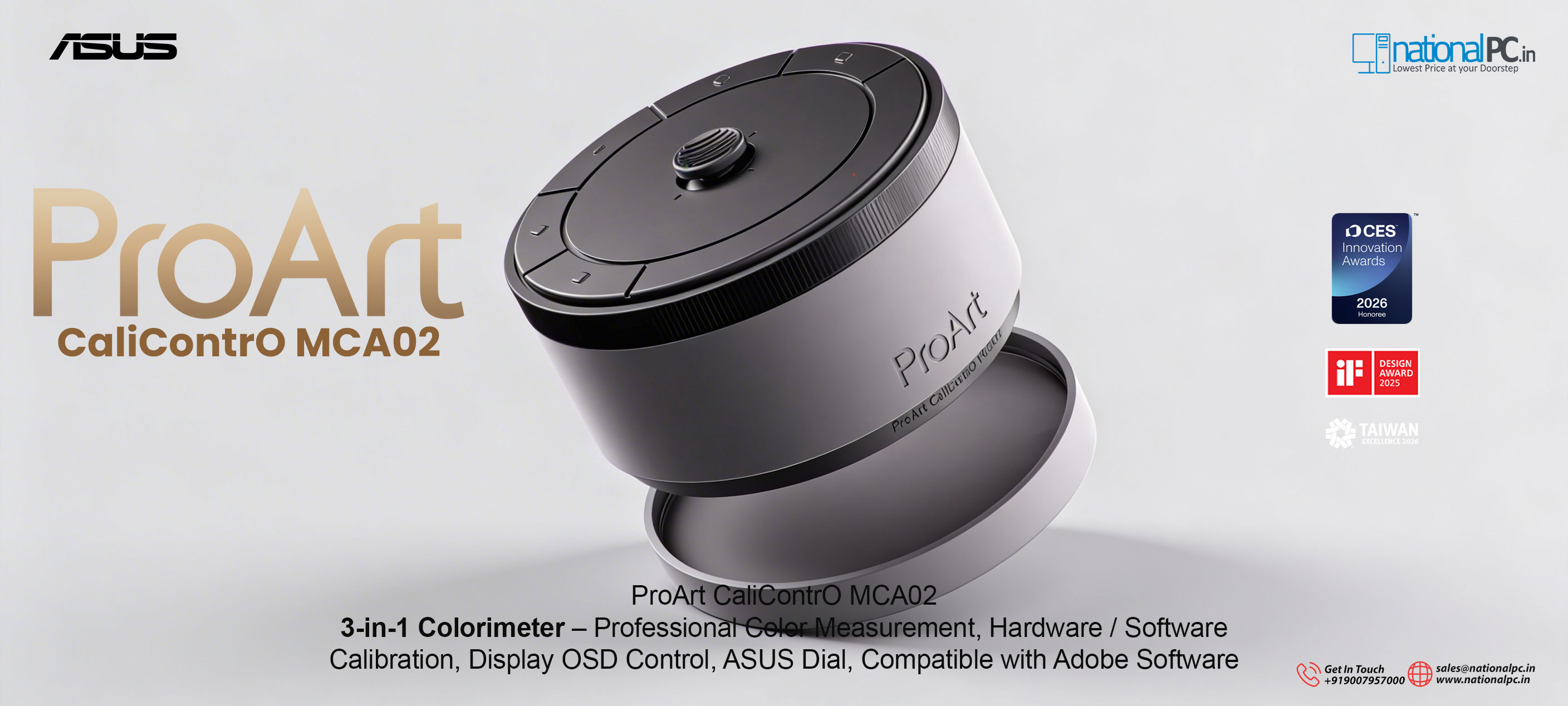
ASUS ProArt CaliContrO MCA02: The “Creator Control Pod” That Also Calibrates Your Display
That’s the space ASUS is targeting with the ProArt CaliContrO MCA02—a 3-in-1 device designed for creators who want to keep their display behaving like a reliable reference, while also making day-to-day control faster and more ergonomic.
ASUS positions the MCA02 as:
an integrated colorimeter for calibration,
a monitor OSD controller (5-way navigator + shortcut key), and
an ASUS Dial-style productivity control.
That combination is what makes it different from the usual “hang the puck, calibrate, put it back in a drawer” approach.
Why this product exists: the real problem it solves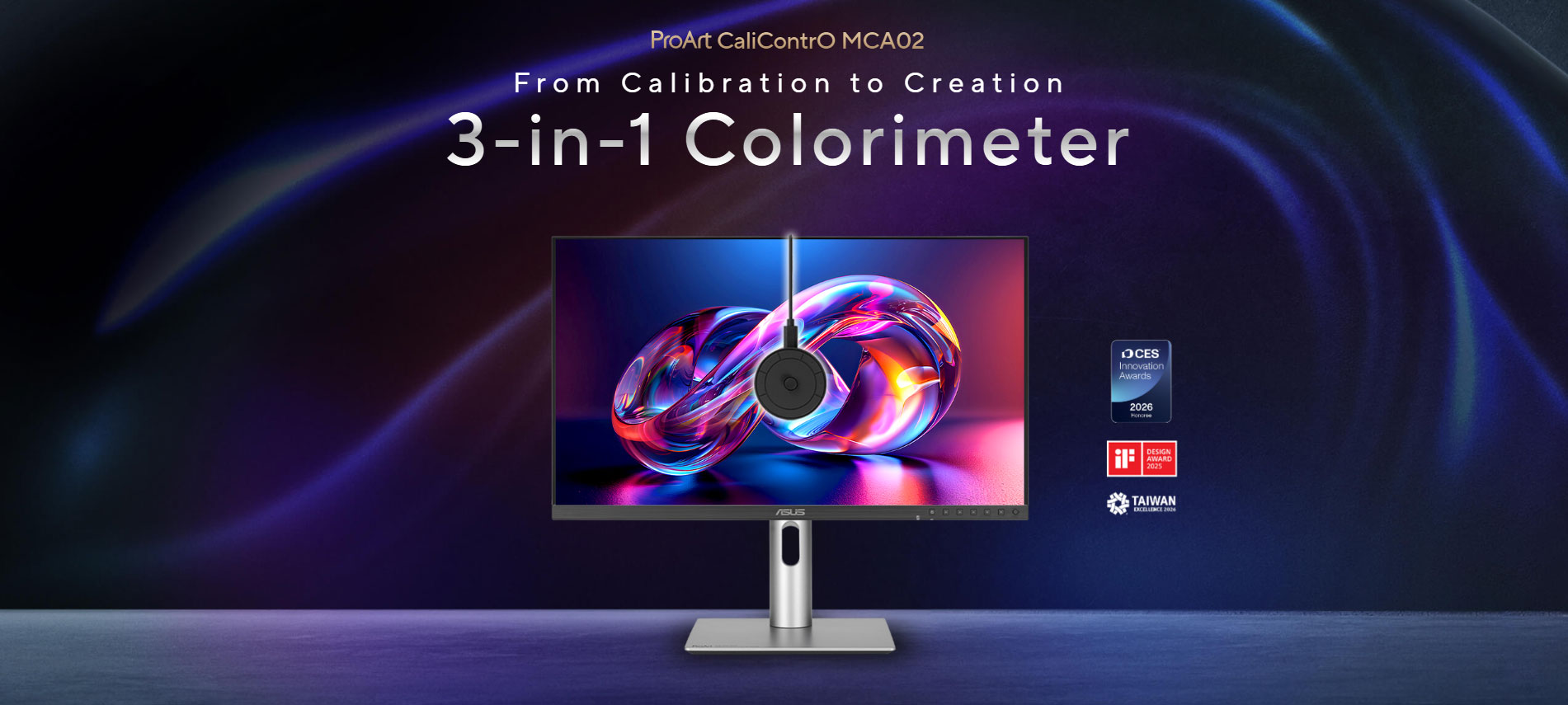
If you’ve used a good monitor (especially a pro panel), you already know the main challenge isn’t getting it to look good on day one—it’s keeping it consistent.
Even high-end displays drift over time due to:
backlight aging / panel wear
temperature changes in your room
brightness habits (working at 80–120 nits one day, 200+ nits the next)
switching between SDR and HDR workflows
bouncing between laptop, desktop, and multiple machines
And then there’s the productivity side: even a great monitor becomes annoying if you’re constantly reaching behind the panel or digging through OSD menus for mode switches and quick tweaks.
The MCA02 is built to address both:
maintain long-term color accuracy via calibration
make monitor control + creative workflow faster at the desk
What exactly is the ProArt CaliContrO MCA02?
Think of it as a creator “control pod” that also happens to be a professional colorimeter.
1) Colorimeter (calibration sensor)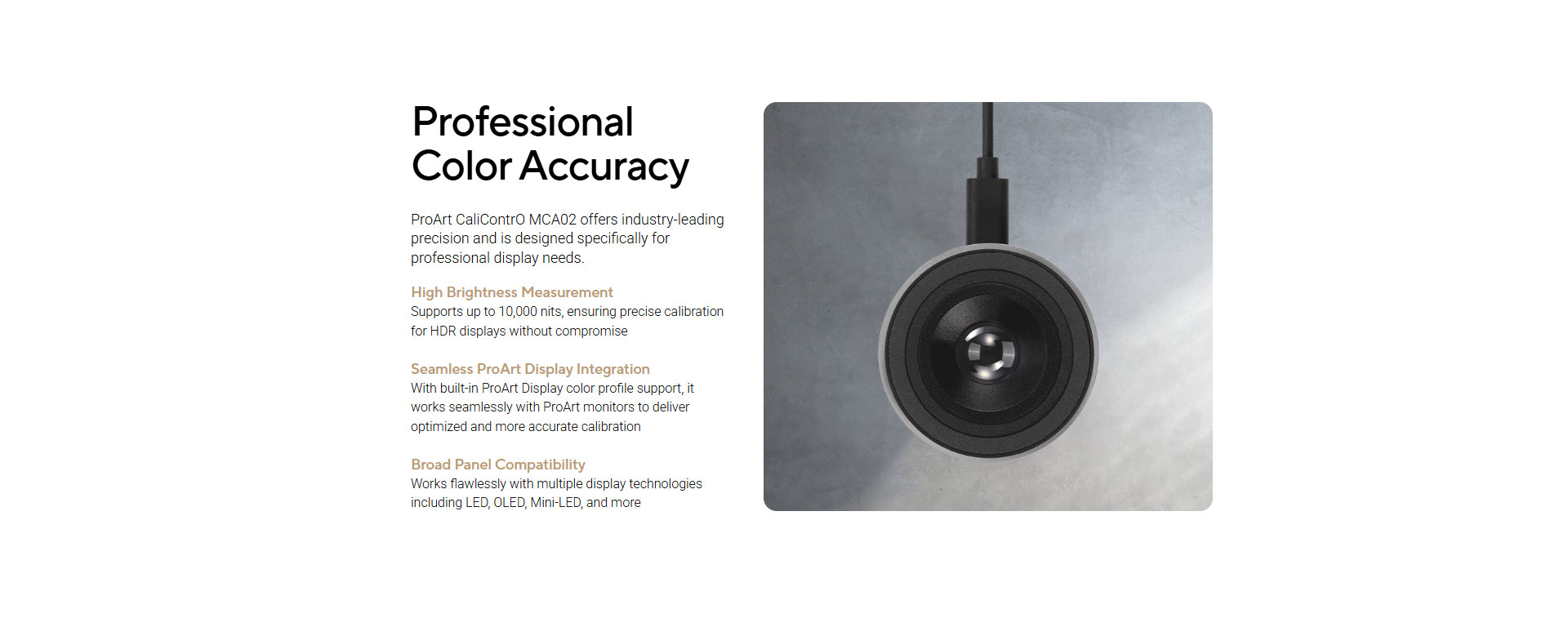
At its core, MCA02 is a display measurement device meant to calibrate monitors and create accurate profiles.
ASUS highlights a key capability: high brightness measurement up to ~10,000 nits (useful for HDR calibration on modern display types like LED, OLED, Mini-LED).
ASUS also publishes accuracy specs under defined conditions:
Chromaticity accuracy: ±0.005 x,y
Luminance accuracy: ±5%
(under ASUS’s standard LCD test condition at 100 cd/m², 23°C ±2°C, RH 40%)
Those numbers matter because they set expectations for repeatability—especially when you’re calibrating multiple times a year and comparing results.
2) OSD controller (within reach of your hand)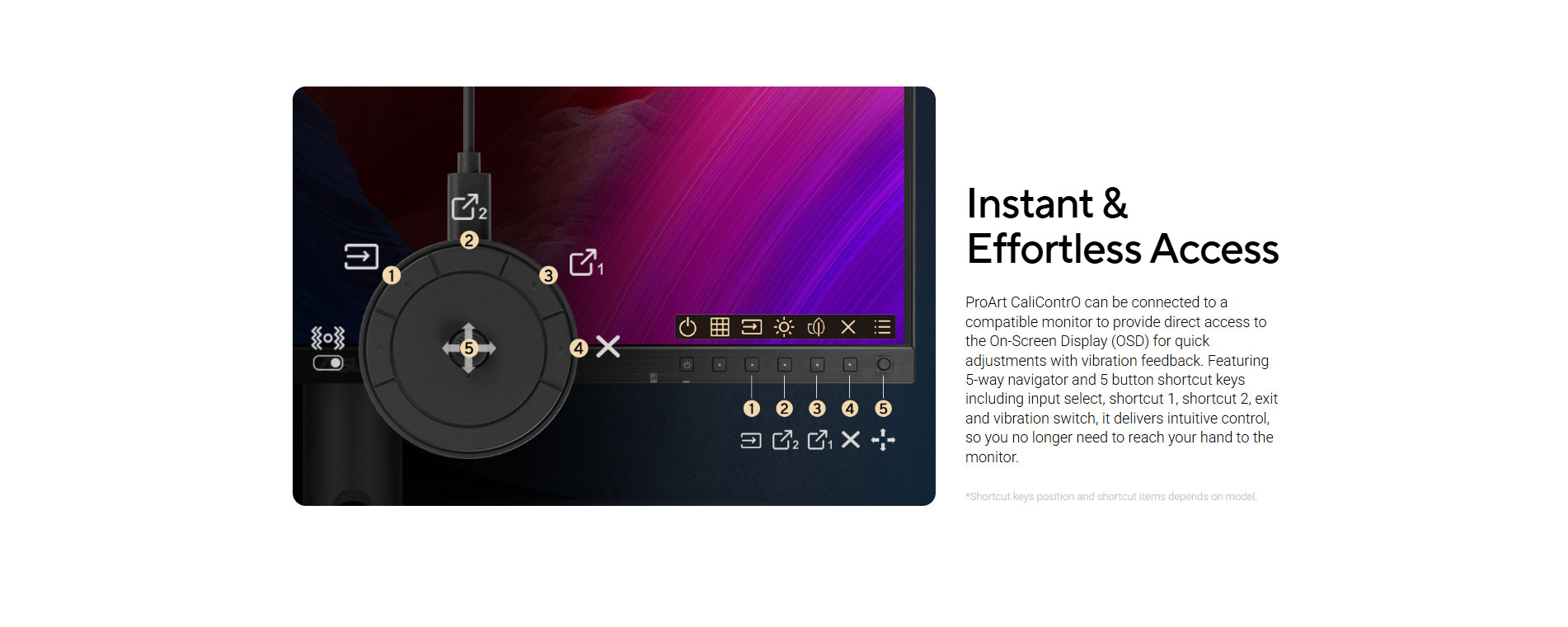
ASUS describes a 5-way navigator and shortcut key for intuitive OSD control, designed so you can reach it easily rather than fumble behind the display.
In real workflows, this is most useful when you need quick access to:
brightness / uniform brightness behaviors
switching preset modes (sRGB / DCI-P3 / Rec.709, etc., depending on monitor)
toggling SDR vs HDR preview modes (monitor dependent)
changing input / KVM behavior (monitor dependent)
3) ASUS Dial feature (workflow control)
The third leg is the “creator control” function—ASUS calls out ASUS Dial features as part of this 3-in-1 device.
In practice, dials are most valuable when they’re mapped to “high-frequency” actions:
timeline zoom / scroll in video editors
brush size / opacity in photo tools
scrubbing, parameter tweaks, or zoom in CAD/3D apps
Even if you already use keyboard shortcuts, the dial often becomes the “fast, one-hand” interface that reduces micro-interruptions.
Calibration: what “good” looks like for creators
A professional calibration conversation should start with the target, not the tool. Calibration is only useful if it matches your delivery environment.
Typical targets (not rules—starting points):
Photo / general web content
White point: D65 (6500K)
Gamma: 2.2
Brightness: 80–120 nits (depending on your ambient light)
Video / Rec.709 (most SDR broadcast/web video work)
White point: D65
Gamma: 2.4 (often) or 2.2 depending on environment and pipeline
Brightness: commonly around 100 nits for controlled rooms
Print / prepress oriented
White point: often D50 (depends on print viewing standard / light booth)
Brightness: usually lower than typical office brightness so prints don’t look “too dark” later
The point: the MCA02 helps you hit your chosen target and maintain it, but your target must match your workflow.
Now, what makes MCA02 particularly relevant for modern creators is ASUS’s emphasis on HDR calibration headroom (up to ~10,000 nits measurement). That doesn’t mean your monitor will display 10,000 nits—very few do—but it signals the sensor is intended to measure across high-luminance HDR scenarios without clipping out early.
How it fits into ASUS ProArt Calibration (and why that matters)
ASUS has a dedicated workflow: ProArt Calibration software for Windows and macOS.
A big differentiator ASUS promotes in ProArt Calibration is that, for supported ProArt displays, calibration can be stored on the monitor’s internal hardware (internal scaler/LUT workflow) rather than relying purely on OS-level ICC behavior. ASUS notes the software saves color parameter profiles on the monitor’s internal chip and rewrites the look-up table for consistent behavior across devices.
Why this matters:
OS-level color management can be inconsistent across apps (especially across mixed workflows).
Hardware calibration workflows, where supported, tend to produce more predictable results—particularly if you move between machines.
So the “ProArt integration” claim isn’t just marketing: it’s about connecting calibration to the display in a way that reduces dependence on the OS and application color handling.
Compatibility with pro-grade calibration ecosystems
ASUS notes ProArt displays can work with major calibrators and with pro calibration software like Calman and Light Illusion ColourSpace (availability depends on model and setup).
For MCA02 specifically, third-party retail listings also call out compatibility with ASUS ProArt Calibration and Light Illusion ColourSpace.
If you’re a studio user, ColourSpace compatibility can matter because it’s a common tool in color-managed environments, and it’s often used where calibration is part of a larger measurement/verification workflow.
The “OSD control” angle: why pros should care
It’s easy to dismiss OSD control as convenience. But in real production environments, it can also reduce mistakes.
If switching between modes is annoying, people stop doing it properly. They’ll:
grade Rec.709 content while still in a wide-gamut DCI-P3 mode
run too bright because it “looks better”
leave HDR on when working SDR
forget which preset is active
Fast, tactile OSD control increases the chance you’ll actually keep the display in the correct mode for the job.
ASUS explicitly positions MCA02 as “display OSD control accessible within reach of your hand.”
For solo creators and small studios, that’s not a small deal. It’s workflow hygiene.
HDR creators: what to know before you buy
HDR workflows are where calibration discussions get more complex. There are multiple HDR formats and transfer functions, and “HDR-ready” can mean very different things across displays.
MCA02’s value proposition for HDR is mainly about measurement headroom (up to ~10,000 nits) and being designed for “HDR displays without compromise” in ASUS’s wording.
But practical guidance:
HDR calibration quality still heavily depends on your monitor’s HDR implementation and controls.
Many creators still do a lot of SDR work even on HDR-capable panels.
A sensor that can measure accurately at high luminance is useful, but your real-world result comes from the whole chain: display + software + targets + environment.
If you work in HDR often, MCA02 makes more sense than a basic entry-level colorimeter because ASUS is clearly aiming it at that “modern HDR creator” reality.
Who should buy the ProArt CaliContrO MCA02?
Strong “yes” cases
1) You own (or plan to buy) an ASUS ProArt monitor and care about consistency
ASUS describes “seamless ProArt display integration” and calibration workflows that are designed around ProArt monitors and profiles.
2) You switch modes often (SDR/HDR, sRGB/DCI-P3/Rec.709)
This is where OSD control + quick access becomes real productivity, not gimmick.
3) You want one desk tool instead of separate devices
Most setups use:
a calibration puck
monitor buttons/joystick for OSD
a dial or macro device (optional)
MCA02 combines those into one product category.
Maybe / depends
1) You already own a high-end calibrator ecosystem
If you already have a pro sensor and stable workflow, MCA02’s unique value becomes the integrated control pod + ASUS workflow integration.
2) You’re not color-critical
If your work is casual editing and you rarely calibrate, you might not benefit enough from a pro-focused tool.
Not ideal
If you only want the cheapest “once in a year” calibration
There are cheaper calibrators for basic needs. MCA02 is positioned more as an ongoing creator tool.
Setup & maintenance: how to get the most out of it
A realistic “pro” calibration habit looks like this:
Calibrate monthly if you’re doing client color work or print deliverables.
Calibrate every 6–8 weeks for regular creator work.
Calibrate immediately if you changed your working brightness, moved your desk, or your room lighting changed drastically.
And environment matters:
Keep lighting stable (avoid direct sunlight on the screen).
Avoid calibrating right after the monitor has been off—let it warm up.
Use consistent brightness targets so your brain doesn’t “chase” new looks.
If you do this, calibration stops being a chore and becomes a quick check-in that protects your output quality.
Awards / credibility notes
ASUS’s product page for MCA02 lists a 2026 Taiwan Excellence Award entry for the device.
Awards don’t replace technical evaluation, but they do support that the product is a serious, formally-positioned accessory rather than a niche experiment.
Where to buy (India + official options)
1) NationalPC (India)https://nationalpc.in/monitors/asus-proart-calicontro-mca02